

An infinite scroll is a process by which a list of elements grows longer as a user approaches the bottom of that list by giving the illusion of an endless feed of content. In this article, I'll show you how to implement infinite scrolling using React, React Query, and an intersection observer through a Pokémon list app.
The complete code of this tutorial is located here
Setup
Let's start by creating a new React app:
npx create-react-app infinite-scrolling-react The dependencies
Then we need to install the necessary dependencies for our app:
npm i -D tailwindcss postcss autoprefixer npm i @tanstack/react-query axios We will use Tailwindcss for the styling, React Query for handling the data fetching, and Axios for making the HTTP requests.
Tailwind configuration
For Tailwindcss to work, we need to initiate and configure it.
Let's execute the following command:
npx tailwindcss init -p It will create the Tailwindcss configuration file, tailwind.config.js.
Let's modify it to match the following:
/** @type {import('tailwindcss').Config} */ module.exports = { content: ['./src/**/*.{js,jsx,ts,tsx}'], theme: { extend: {}, }, plugins: [], }; Then we add the Tailwind directives in the ./src/index.css file:
@tailwind base; @tailwind components; @tailwind utilities; body { background-color: #9f9e9e; } React Query configuration
All of the React Query operations will operate through a query client. Let's create one client instance and provide it to our app in the ./src/index.js file.
import React from 'react'; import ReactDOM from 'react-dom/client'; import './index.css'; // import the client provider and the client class import { QueryClientProvider, QueryClient } from '@tanstack/react-query'; import App from './App'; const queryClient = new QueryClient(); // our client instance const root = ReactDOM.createRoot(document.getElementById('root')); root.render( <React.StrictMode> // make the client available <QueryClientProvider client={queryClient}> <App /> </QueryClientProvider> </React.StrictMode> ); The PokéAPI
Our list of pokémons will come from pokéAPI. It's a public API with a massive collection of data about Pokémon. For this example, we're interested in the list of pokémon names we can fetch with a GET request at https://pokeapi.co/api/v2/pokemon.
The UI structure
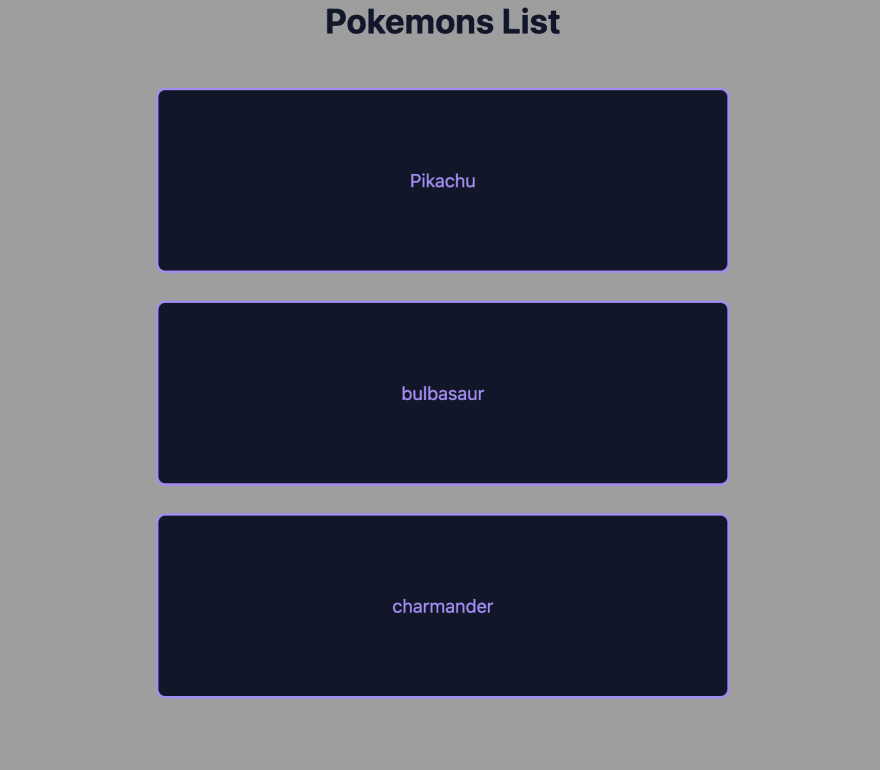
Let's implement the basic structure for our app with some styling. It will consist of a heading and an unordered list of names. So, we update the ./src/App.js file with the following:
export default function App() { return ( <main className="grid gap-10 max-w-xl mx-auto px-2 md:px-10 text-slate-900"> <h1 className="text-3xl text-center font-bold">Pokemons List</h1> <ul className="gap-6 grid grid-cols-1 "> {['Pikachu', 'bulbasaur', 'charmander'].map((name, resultIdx) => ( <li className="bg-slate-900 w-full flex items-center justify-center h-40 rounded-lg border-solid border-2 border-violet-400 text-violet-400" key={name} > {name} </li> ))} </ul> </main> ); } And we get this:
Data fetching
For now, we're iterating through hardcoded data. What we want is data from the PokéAPI. So let's create a helper function that will make the request.
// src/App.js import axios from 'axios'; const fetchNames = async () => await axios.get('https://pokeapi.co/api/v2/pokemon?limit=5'); //... The fetchNames is an asynchronous function that fetches the first five pokémon names. To help us handle this request, we'll use the useQuery hook from react-query.
// src/App.js //... import { useQuery } from '@tanstack/react-query'; //... export default function App() { const { data, isLoading, isError } = useQuery({ queryKey: ['names'], queryFn: fetchNames, }); console.log(data); if (isLoading) { return <span>loading...</span>; } if (isError) { return <span>Something went wrong...</span>; } //... } We pass as an option the query key and the query function. React Query uses the query key to identify a query and cache the resulting data. The query function is where we will make an HTTP request by calling fetchNames. useQuery returns the request result and some booleans about the query's state. When we console.log the data, we get the following data structure:
{ "data": { "count": 1154, "next": "https://pokeapi.co/api/v2/pokemon?offset=5&limit=5", "previous": null, "results": [ { "name": "bulbasaur", "url": "https://pokeapi.co/api/v2/pokemon/1/" }, { "name": "ivysaur", "url": "https://pokeapi.co/api/v2/pokemon/2/" } // three others below ] }, "status": 200 //... } Axios stored the PokéAPI response data under the data key. We are interested in the next and the results keys. results contains the first five names we requested, and next holds the endpoint we need to hit to get the subsequent five names. Now let's update the code to iterate through the API results:
//... { data.data.results.map((pokemon, resultIdx) => ( <li className="..." key={pokemon.name}> {pokemon.name} </li> )); } //... Pagination
We can consider our unordered list of five names as one page, but we want our names list to be collections of pages stacked vertically. React Query has a useInfiniteQuery hook to help us with that. Let's replace useQuery with it:
//... import { useInfiniteQuery } from '@tanstack/react-query'; //... const fetchNames = async ({ pageParam = 'https://pokeapi.co/api/v2/pokemon?limit=5', }) => await axios.get(pageParam); //... export default function App() { const { data, isLoading, isError, hasNextPage, fetchNextPage } = useInfiniteQuery({ //... queryFn: fetchNames, getNextPageParam: (lastPage, pages) => lastPage.data.next, }); console.log(data); //... return ( //... {data.pages.map((page, pageIdx) => ( <ul key={`page-${pageIdx}`} className="..."> {page.data.results.map((pokemon, resultIdx) => ( <li key={pokemon.name} className="..." > {pokemon.name} </li> ))} </ul> ))} //... ); useInfiniteQuery required some other changes. Let's go through them. We had to get the pageParam from the query context enabling us to fetch the following pages. pageParam gets its value from the getNextPageParam function that we pass to useInfiniteQuery.
const { data, isLoading, isError, hasNextPage, fetchNextPage } = useInfiniteQuery({ queryKey: ['names'], queryFn: fetchNames, getNextPageParam: (lastPage, pages) => lastPage.data.next, }); The return value of getNextPagePage also determines the boolean value of hasNextPage. Here, there are no more pages when lastPage.data.next is undefined, making hasNextPage false. The updated query function working with getNextPageParam will allow us to invoke fetchNextPage to get the subsequent pages when needed. Now data is structured based on a series of pages:
{ "pages": [ { "data": { "count": 1154, "next": "https://pokeapi.co/api/v2/pokemon?offset=5&limit=5", "previous": null, "results": [ { "name": "bulbasaur", "url": "https://pokeapi.co/api/v2/pokemon/1/" } ] } } ], "pageParams": [null] } So we need to iterate through each page before iterating through the names:
{ data.pages.map((page, pageIdx) => ( <ul key={`page-${pageIdx}`} className="..."> {page.data.results.map((pokemon, resultIdx) => ( <li key={pokemon.name} className="..."> {pokemon.name} </li> ))} </ul> )); } The infinite scrolling
The final thing we need is to invoke the fetchNextPage function at the right time when the user scrolls and reaches the bottom of the list. And that is where the intersection observer comes into play. It allows us to observe an intersection between two elements. Our plan here is to fetch the next page when the second last li element, representing the second last name in the list, intersects with the bottom of the viewport. Now let's define two refs: one for the observer and one for our second last list item.
export default function App() { //... const intObserver = useRef(null); const secondLastLIRef = useCallback( (li) => { if (isLoading) return; if (intObserver.current) intObserver.current.disconnect(); intObserver.current = new IntersectionObserver((li) => { if (li[0].isIntersecting && hasNextPage) { fetchNextPage(); } }); if (li) intObserver.current.observe(li); }, [isLoading, fetchNextPage, hasNextPage] ); //... } In the secondLastLIRef, we created a new intersection observer instance that calls fetchNextPage only when a given element intersection with the bottom of the viewport and a new page is available:
intObserver.current = new IntersectionObserver((li) => { if (li[0].isIntersecting && hasNextPage) { fetchNextPage(); } }); We saved the instance as a ref because after it calls fetchNextPage, the component re-renders. We need to preserve this instance so we can disconnect it to the previous second to last list item name and observe the current relevant new list item:
if (intObserver.current) intObserver.current.disconnect(); //... if (li) intObserver.current.observe(li); Let's bid secondLastLIRef to the second to last list item by keeping in mind that we also need to target the endmost page.
<li className="..." key={pokemon.name} ref={ data.pages.length - 1 === pageIdx && page.data.results.length - 2 === resultIdx ? secondLastLIRef : null } > And voilà! Our infinite scrolling feature is up and running. Scroll until the bottom and see our list of pokémon names grow larger and larger.