

When working with JavaScript/TypeScript projects, whether that's React, Node, or something else, I often find myself needing to print out the value of a variable to the console.
To do this, I'd usually begin by typing out console.log and then copy and paste the variable name into the parameters to get console.log("foo", foo)
Easy enough, but can get quite repetitive and tedious. So, I thought, “it'd be cool if I could just click on a variable and automatically copy a console.log for it!” And then I thought, “I've been interested in how VS Code extensions work, so I sense a good opportunity here!”
The process
Development
Implementing the command
Turns out, it was a lot easier than I expected. I started by reading the VS Code documentation on how to create your first extension.
With this setup, it was time to write my own code for my extension. This involved registering a new command with the vscode.commands.registerCommand method that VS Code provides. I placed this inside the activate method that was already present in the extension.ts file provided by the VS Code documentation mentioned in the last paragraph.
export function activate(context: vscode.ExtensionContext) { const disposable = vscode.commands.registerCommand("extension.copyVariableConsoleLog", function () { ... }); context.subscriptions.push(disposable); } I referred to the documentation to figure out how to get the currently selected text in the editor.
const editor = vscode.window.activeTextEditor; const selection = editor?.selection; const text = editor?.document.getText(selection); const variableName = text?.trim(); Then, I learned how to copy this text to the clipboard, which can be done with:
vscode.env.clipboard.writeText("the text"); The final implementation of the extension.ts file:
import * as vscode from 'vscode'; export function activate(context: vscode.ExtensionContext) { const disposable = vscode.commands.registerCommand("extension.copyVariableConsoleLog", function () { const editor = vscode.window.activeTextEditor; const selection = editor?.selection; const text = editor?.document.getText(selection); const variableName = text?.trim(); const consoleLog = `console.log("${variableName}", ${variableName});`; vscode.env.clipboard.writeText(consoleLog); vscode.window.showInformationMessage(`Copied ${consoleLog} to clipboard.`); }); context.subscriptions.push(disposable); } Next, I added the command to the package.json file as such:
"commands": [ { "command": "extension.copyVariableConsoleLog", "title": "Copy Variable Console Log" } ], That's well and good, now I can highlight a variable, open up the command prompt inside VS Code, type in “copyVariableConsoleLog”, execute and then the console.log is saved to my clipboard!
Adding the command to the context menu
This works, but there's still a lot of typing to do. I wanted to see if I can add this command to the context menu that appears when you right-click anywhere in the editor.
To add the command to the context menu, you need to modify the package.json again, similar to how it was done when adding the command.
"menus": { "editor/context": [{ "command": "extension.copyVariableConsoleLog", "when": "editorTextFocus" }] }, It just works!
Adding a keybind
It would be even less effort if I had a keybind for this. Luckily, adding a keybind is just as easy as adding the command or context menu option. Another edit of the package.json file:
"keybindings": [{ "command": "extension.copyVariableConsoleLog", "key": "alt+ctrl+c", "mac": "alt+cmd+c", "when": "editorTextFocus" }] And again… it just works!
Publishing
Now that the extension was complete, I wanted to share it with the world, and gain some understanding of how the publishing process works for VS Code extensions. Turns out, it was also very simple to do.
I followed the publishing extensions documentation, which details how to use the vsce command to package and publish your extensions.
I ran into an issue when trying to publish the extension via the command line vsce command. I created my PAT token as per the instructions, however I was getting permissions issues. After some extensive Google fu, I could not find a solution to the problem. Luckily, there was a way to manually upload the package file via a web page.
The result
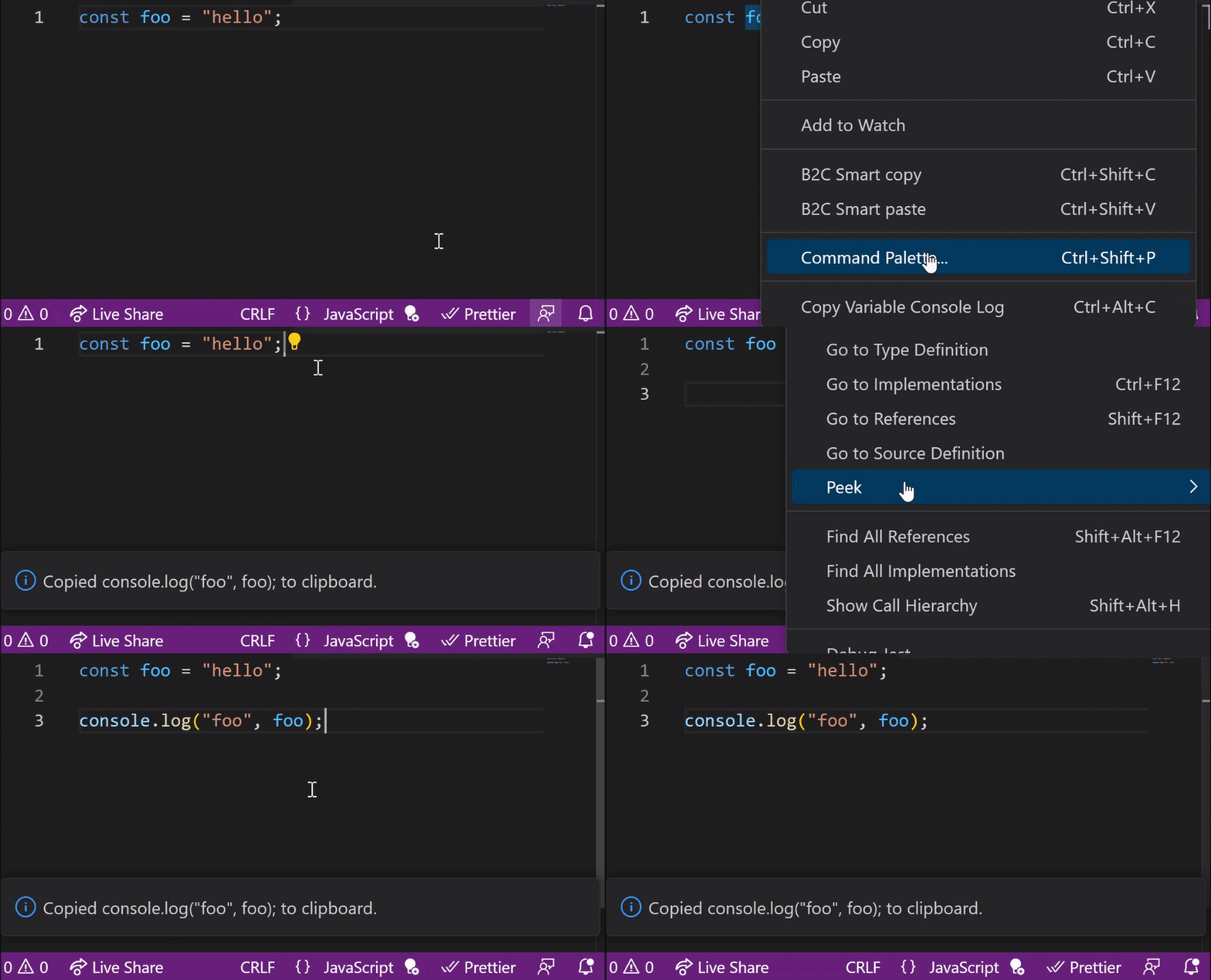
Now I can speed up my development time by a few seconds by double-clicking a variable name, then pressing ALT+CTRL+C, and pasting the log wherever I need it 😉
Final words
This is the part where somebody tells me such a thing already exists, or that there was an easier way to achieve this. However, in the end, I'm at least happy to share that I've learned something new in the process.