

In this article, we'll guide you through the process of building a typewriter effect step-by-step, even if you have little to no prior experience. By the end of this guide, you will have a solid understanding of the typewriter effect and be able to implement it in your projects.
Before we begin, let's take a moment to understand what the typewriter effect is, and explore some examples of websites that uses the effect.
What is a Typewriter Effect
The typewriter effect creates the illusion of text being typed out on a screen, one character at a time. It involves animating the appearance of each character and adding a blinking cursor to indicate the ongoing typing process.
Examples of websites that use the effect
To get a better understanding of how the typewriter effect is used in real-life situations, it's important to explore its practical implementations in different contexts. Some project examples of where the typewriter effect can be used include personal portfolios, storytelling websites, landing pages, and more.
Now that we know what the typewriter effect is and where it can be implemented, let's begin the project.
Setting Up the Environment
Before we dive into coding, it's important to have the necessary tools and software in place. For this project, we will use Visual Studio Code as our primary text editor and Google Chrome for previewing and testing.
To keep our project organized, we will create a folder, and within it, we will create our HTML, CSS, and JavaScript files.
Linking HTML, CSS, and JavaScript files
To start building the typewriter effect, we need to link our HTML, CSS, and JavaScript files together. In the HTML file, use the <link> tag to link the CSS file for styling and the <script> tag to link the JavaScript file for implementing the typewriter effect.
Here's an example:
<!-- Include the external CSS file --> <link rel="stylesheet" href="style.css"> <!-- Include the external JavaScript file --> <script src="index.js"></script> Now that we are done setting up the environment, let's move on to creating the HTML structure.
- HTML Structure
In this section, we'll create the HTML structure for the typewriter effect. We will start by setting up the boilerplate. After that, we will create a <div> container with an id of text-container to hold our text. Within the container, we will add a <span> element for each character of the text. This structure will allow us to manipulate and animate each character individually.
Here's an example:
<!-- Define the document type as HTML --> <!DOCTYPE html> <!-- Start of the HTML document --> <html lang="en"> <head> <!-- Start of the head section --> <meta charset="UTF-8"> <meta name="viewport" content="width=device-width, initial-scale=1.0"> <!-- Include the external CSS file --> <link rel="stylesheet" href="style.css"> <!-- Set the title of the document --> <title>Typewriter effect</title> <!-- End of the head section --> </head> <body> <!-- Start of the body section --> <div id="text-container"> <!-- The following <span> elements represent individual characters --> <!-- Each character is assigned the 'character' class --> <span class="character">H</span> <span class="character">e</span> <span class="character">l</span> <span class="character">l</span> <span class="character">o</span> <span class="character">,</span> <span class="character"> </span> <span class="character">i</span> <span class="character">'</span> <span class="character">m</span> <span class="character"> </span> <span class="character">T</span> <span class="character">o</span> <span class="character">p</span> <span class="character">e</span> <span class="character">,</span> <span class="character"> </span> <span class="character">a</span> <span class="character"> </span> <span class="character">f</span> <span class="character">r</span> <span class="character">o</span> <span class="character">n</span> <span class="character">t</span> <span class="character">e</span> <span class="character">n</span> <span class="character">d</span> <span class="character"> </span> <span class="character">d</span> <span class="character">e</span> <span class="character">v</span> <span class="character">e</span> <span class="character">l</span> <span class="character">o</span> <span class="character">p</span> <span class="character">e</span> <span class="character">r</span> </div> <!-- Include the external JavaScript file --> <script src="index.js"></script> <!-- End of the body section --> </body> <!-- End of the HTML document --> </html> - Styling with CSS
To make the typewriter effect visually appealing, we need to define the overall layout and design using CSS. This involves setting the background, choosing appropriate fonts, and adjusting the spacing and alignment of the text.
- Styling the text container
Here, we'll style the text container and span elements. We'll use CSS properties like padding, borders, and background colors to make the text container visually appealing.
Here's an example:
#text-container { /* Set the font family to Arial, sans-serif font */ font-family: Arial, sans-serif; /* Set the font size to 1.5rem */ font-size: 1.5rem; /* Set the background color to a dark gray */ background: #333; /* Set the text color to white */ color: #fff; /* Add padding of 1rem (16px) on all sides of the element */ padding: 1rem; } .character { /* The opacity: 0; property sets the initial opacity of the element to 0, making it invisible */ opacity: 0; } - JavaScript Implementation
To implement the typewriter effect, we need to select and target the text container element. In this case, we'll use JavaScript to manipulate the text and apply the typewriter animation. By selecting the element, we can access and modify its content dynamically.
Here's an example:
// Get the element with the ID 'text-container' const textContainer = document.getElementById('text-container'); // Get all elements with the class 'character' within the text container const characters = textContainer.getElementsByClassName('character'); // Initialize the index variable to keep track of the current character let index = 0; After that, we'll define a function, typewriterEffect(), that will control the typewriter effect. Within this function, we'll define a logic that iterates through each character of the text and applies the required animation and delay.
After defining the logic, we'll call a setTimeout() function that will control the timing and animation of each character. Then we'll call the typewriterEffect() to execute the typewriter effect.
Here's an example:
const textContainer = document.getElementById('text-container'); const characters = textContainer.getElementsByClassName('character'); let index = 0; function typewriterEffect() { // Check if the index is less than the total number of characters if (index < characters.length) { // Set the opacity of the current character to 1 characters[index].style.opacity = '1'; // Increment the index to move to the next character index++; // Call the typewriterEffect function again after a delay (90 milliseconds in this case) setTimeout(typewriterEffect, 90); } } // Call the typewriterEffect function to start the typewriter effect typewriterEffect(); Preview

Now that we've achieved this, you may consider setting the typewriter effect on repeat. To achieve this, you can modify the existing code by adding a condition to check if the typewriter effect has reached the end of the characters.
Here's an example:
const textContainer = document.getElementById('text-container'); const characters = textContainer.getElementsByClassName('character'); let index = 0; function typewriterEffect() { // Check if the index is greater than or equal to the total number of characters if (index >= characters.length) { index = 0; // Reset the index to restart the typewriter effect // Reset the opacity of all characters Array.from(characters).forEach(character => { character.style.opacity = '0'; }); } // Set the opacity of the current character to 1 characters[index].style.opacity = '1'; index++; setTimeout(typewriterEffect, 90); } typewriterEffect(); In this implementation, when the typewriter effect reaches the end of the characters, the index is reset to 0, and the opacity of all characters is set to '0' to reset their states.
Preview
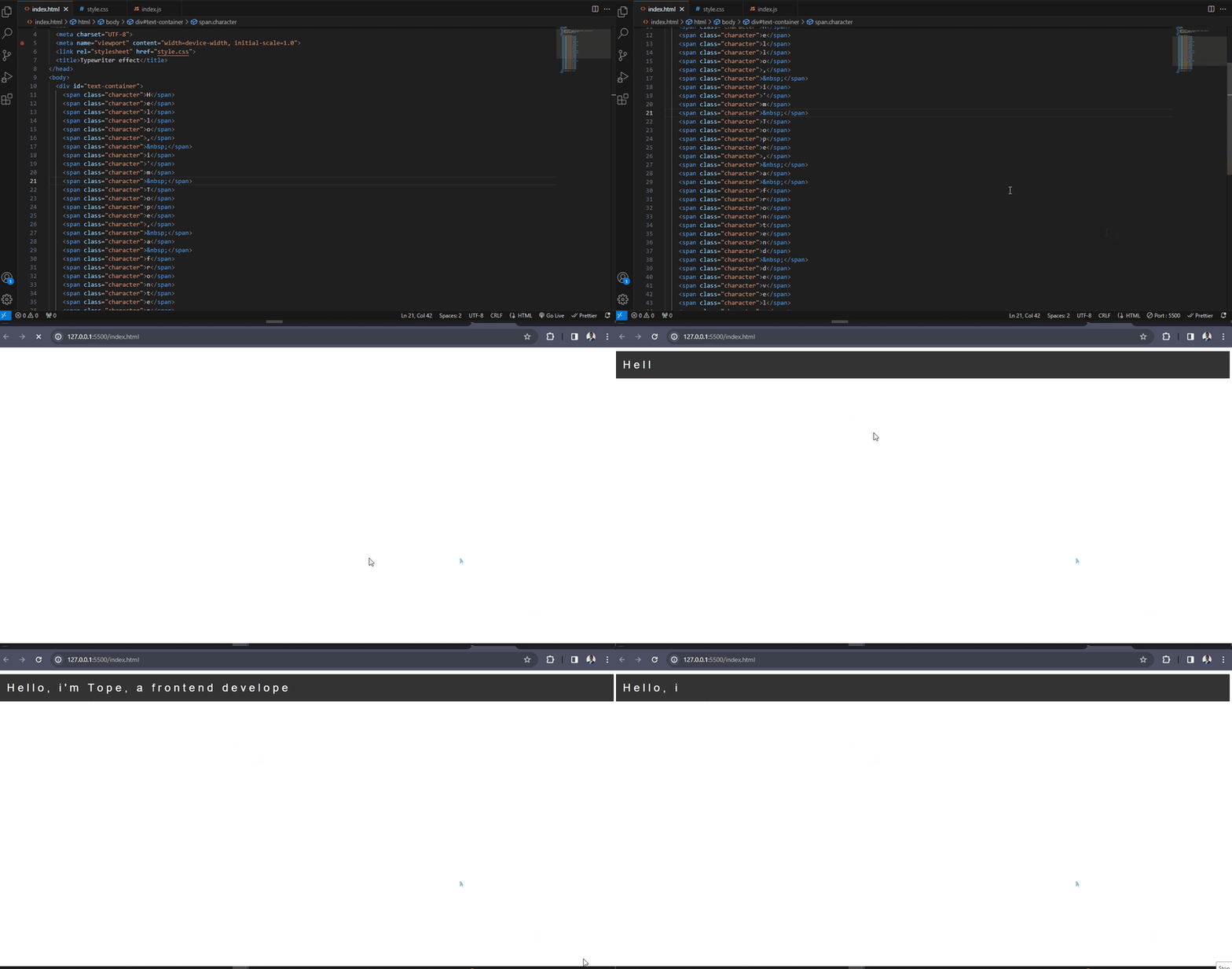
Feel free to adjust the delay (in milliseconds) within the setTimeout() function to control the typing speed according to your preferences.
Conclusion
This article has provided a step-by-step guide to building a typewriter effect. We began by introducing the typewriter effect and discussing its application. We then delved into understanding the typewriter effect, explored examples of websites that use it effectively and proceeded with setting up the project, creating the HTML structure, and styling it with CSS. We then implemented the typewriter effect using JavaScript.
Final Thought
Building a typewriter effect is a great starting point for beginners to gain practical experience. However, there are endless possibilities to explore and customize the effect further.
We encourage you to continue learning and experimenting with different techniques and functionalities. By doing so, you'll broaden your web development skills and open the door to more engaging and interactive projects.
You can follow me on socials: